Tuesday, June 28, 2011

How to Refill Cartridges HP21, HP22, HP27, HP28, HP56, HP57, HP58, HP59

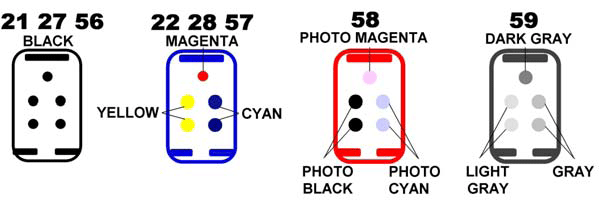
hp2.gifREFILLING HP Cartridges HP21 and HP22. The physical cartridge & ink for the 21 & 22 cartridges are the same as the other cartridges listed in these instructions. The difference is how much ink you get from HP and the sponge material used in the cartridges. The sponge material in the HP21 and  HP22 cartridges does not allow the cartridge to hold very much ink. When refilling the HP21 black do not attempt to inject more than 5ml and only use the top most center hole for refilling (see picture on far left—red circle). When refilling the HP22 do not use more than 2cc per color. Injecting too much ink can result in cartridge bleeding.
refil-hp.gif

BLACK CARTRIDGES: C6656, C8727 & C9351 (See Refilling HP21 and HP22 in upper right corner for details)

  1. Remove cartridge from printer & place into cartridge clip. Insert print head first onto sponge material and slide cartridge top into clip.
  2. This cartridge uses a sponge material to retain ink. To get to the sponge remove the label at the top of the cartridge.
  3. Once you have removed the label fill your injector with 10 cc’s of ink
  4. Insert the injector into top cartridge chamber as show on the image above. Insert the injector as far as you can go and then draw back about 1/16th to 1/8th of an inch. (When first injecting ink into cartridge use the fill hole farthest away from you when holding cartridge as shown above left)
  5. Begin to inject ink into the cartridge very slowly. Remember: you are injecting into a sponge—GO SLOW. Slide the injector outward at small increments as you inject the ink. This will allow more of the sponge to quickly become saturated.
  6. When you see ink begin to bubble at the top of the vent hole stop injecting ink. Wait a few seconds and slowly remove the injector. Return any unused ink to its bottle. Sealing the top of the cartridge can be accomplished by reusing original label or by use of tape (scotch tape as an example).
  7. If cartridge accepts a complete refill then repeat using an additional 5cc. (When refilling additional ink use one of the fill holes closest to you when holding cartridge as shown above left.)
  8. To clean the injector draw water in and out repeatedly. A good 8-10 times will do an effective job. For more thorough cleaning remove tip and run both under a faucet.
  9. When finished, allow cartridge to sit in cartridge clip for several minutes before removing. This will allow ink to be absorb into the sponge.

COLOR CARTRIDGES C6657, C6658, C8728, C9352 & C9359 (See Refilling HP21 & HP22 in upper right corner for details)

  1. Remove cartridge from printer & place into cartridge clip. Insert print head first onto sponge material and slide cartridge top into clip.
  2. This cartridge uses a sponge material to retain ink. To get to the fill location you must first remove the label at the top of the cartridge.
  3. Use the cartridge diagrams above to determine which color you wish to refill first. MAKE SURE YOU USE THE CORRECT COLOR CODES FOR YOUR CARTRIDGE.
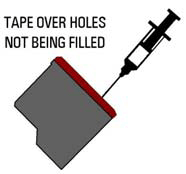
  4. Tape over holes that you are not going to refill.
  5. Once you are ready to refill, fill injector to 5cc
  6. Insert the injector into cartridge chamber. Insert the injector as far as you can go and then draw back about 1/16th to 1/8th of an inch.
  7. Begin to inject ink into the cartridge very slowly. Remember: you are injecting into a sponge—GO SLOW. Slide the injector outward at small increments as you inject the ink. This will allow more of the sponge to quickly become saturated.
  8. When you see ink begin to bubble at the top of the vent hole stop injecting ink. Wait a few seconds and slowly remove the injector. Return any unused ink to its bottle. Sealing the top of the cartridge can be accomplished by reusing original label or by use of tape (scotch tape as an example).
  9. To clean the injector draw water in and out repeatedly. A good 8-10 times will do an effective job. For more thorough cleaning remove tip and run both under a faucet.
  10. REPEAT process with remaining colors.
  11. When finished, allow cartridge to sit in cartridge clip for several minutes before removing. This will allow ink to be absorb into the sponge.

After Refilling

  1. Initially the cartridges may release ink. This is not uncommon when ink has been quickly injected into sponge . Allow cartridge to sit in sink or plastic container until it has stopped. Do not place the cartridge on a paper towel or anything that might draw ink out of the cartridge. DO NOT install your cartridge until the cartridge has ceased releasing ink.
  2. Test your printer. If you see lines in your print or incomplete print then perform several primer pages as described below. We recommend 2-3 primer prints, though more many be necessary .
  3. Make sure your injector is thoroughly clean and all bottles are properly sealed before storing your kit.

Resetting Ink level Black and Color Ink Cartridge HP C5011A (HP 14)

The Black and Color Ink Cartridge HP 14 (C5011A) is used in the new HP OfficeJet D Series and CP 1160 Ink Jet series.

Reset Ink level the HP C5011A (HP 14) Black and Color cartridge used in the HP OfficeJet D Series.

  1. Press the < and > (also the + and -) at the same time, then release quickly (the lcd panel must be showing the date or the procedure will not work)
  2. On the keypad, press in order 7, 8, 9 for black cartridge and press in order 4, 5, 6 for color cartridge
  3. A message will appear asking if you want to override the ink level gauge. Press 1 for yes (You can later turn the ink gauge back on if you install a new cartridge by going through steps 2 and 3, then pressing 2 when prompted if you want to override the ink level gauge).
  4. Your ink level gauge is now turned off and can resume printing.

To turn the ink level gauge off for the HP C5011A (HP 14) black and Color cartridge used in the HP Color InkJet CP 1160 Series :

  1. Press and hold down the power button.
  2. While holding the Power button:
    • Press the Cancel button 12 times
    • Press the Resume button 1 time for Black cartridge, Press the Resume button 3 times for color cartridge
  3. Release the Power button

The ink gauge is now off and you can resume printing

Disable Low Ink Warning in The Hp Deskjet 2466

A few days ago my printer Deskjet 2466 always show low ink warning and this message very disturbing my work. After searching the service for my HP printer that running  in my computer, I found 2 service running for this HP printer. I try to disable the service and it success remove warning message in my computer.

Besides tried in my computer this method on my computer that using HP deskjet 2466, I also tried on other computer that installed that using HP deskjet 2180 all in one printer and it working 100%. The both printer using cartridges HP21 and HP22. I thinks this methods also can be used to remove low ink message on other printer that using the same HP cartridge types.

Here the Methods to Disable Low Ink Warning in the HP Deskjet 2566:

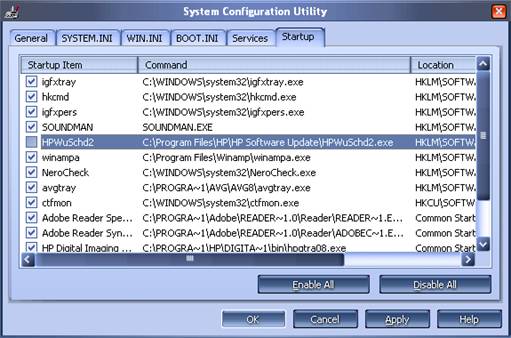
  • Open system configuration utility by click start-run then type msconfig
  • Go to Startup Tab then disable HPWuSchd2 and HP Digital Imaging
    disable low ink warning
  • Click apply then Ok
  • You must restart the computer to take effect

The above methods only for disable low ink warning, not reset the ink level. To reset ink level on the HP printer models mentioned above you use this methods:Ink Levels Reset for HP Cartridges HP21, HP27, HP56, HP58 andHow to Reset Ink Levels for HP Cartridges HP22, HP28, HP57. Good luck. Happy resetter

Cold Reset Methods HP LaserJet Printer 4345 MFP Series

Cold reset is be used to reset HP laserjet printer to the factory default setting, it mean any setting that found on the printer control panel will be reset to factory default setting. But cold reset does not clear the values in the service menu, such as the serial number and the page counts. To do cold reset on HP LaserJet Printer 4345 MFP Series, you try the methods mentioned in this post.

HP LaserJet 4345mfp is multifunction HP laserjet printer with printing, copying and scanning function. This HP Laserjet printer designed for office uses. Price of this HP laserjet printer type is about $2,800. HP 4345 MFP can print B/W document up to 43 ppm. This printer can be connected to printer through Hi-Speed USB port.

HP LaserJet 4345mfp - multifunction printer

How to Perform a Cold Reset HP LaserJet 4345 MFP

  • Turn the HP LaserJet 4345 MFP off and then on this printer.
  • When the memory count appears on the control-panel display, press and hold 6 until all three LEDs flash once and then stay on. This might take up to 20 seconds.
  • Press 3 four times until COLD RESET appears on the control-panel display.
  • Press 6 one time. The HP LaserJet 4345 MFP should continue its initialization sequence.

CAUTION: By performing cold reset all setting on the HP LaserJet 4345 MFP are also reset. Before performing cold reset be sure to print a configuration pada and menu map.

iPrint-Save your Money by Reducing Printing Cost Up To 60%

iPrint is a friendly printing utility saves you time and Money to decrease your printing expenses by up to 60%. iPrint now Free for personal or business use and support for Windows XP, Vista and Window 7. While doing print-job iPrint keeps track of print-jobs measuring total savings and displaying handy reports.

iPrint automatically detect and remove pages with no content with options to manually remove unwanted pages easily, iPrint also allows printing multiple pages on each sheet of paper.

iPrint printer utility

iPrint lowers printing costs by utilizing these features:

  • Automatically delete un-wanted pages.
  • Print multiple pages on each sheet of paper. One of the ways iPrint saves you money is by scaling down pages so that you can fit two or four pages on each sheet of paper.
  • Tracks and reports what you are saving
  • Collect print jobs. iPrint allows you to group together print job requests from multiple applications into a single iPrint session.
  • Measure your savings. iPrint tracks your usage and reports what you print and what you save.

Download iPrint now at this link: http://www.clicktoconvert.com/download/iPrintSetup.exe

Other printer utility can be used to lower your printing cost is inksaver

E-Books How to Refill Toner Cartridge and Inkjet Cartridge

If the cartridge (for inkjet printer)  or toner (for toner printer) in the printer empty or almost empty usually everyone also ask “How to refill my printer cartridge?”. On this e-books you can find out the answer for the question. Maybe this ebbok the only  ebbok that privide complete tutorial how to refill almost all toner cartridge or inkjet cartridges

Several printer types that mentioned in this ebook tutorial that is Brother, Canon, Compaq, Dell, Digital, Epson, Hewlett Packard (HP), Lexmark, Okidata, Pitney Bowes, Sharp, Xerox cartridges. If you having priner service station or you are home user you must download this useful ebook because in this contain complete tutorial to refill printer cartridges.

All tutorial on this e-book has completed with the picture so it will make the user can follow the tutorial “how to refill printer cartridges” in this e-book. The e-book tutorial is produced by www.uni-kit.com, If you want to download the e-book you can download from following link (I hope this ebook will helpful and useful for you):

Download ebook Tutorial how to refill inkjet cartridges (for inkjet printer types)
Download ebook Tutorial how to refill toner cartridges (for laser printer types)

Alternative Ink Level Reset for Cartridges HP 21, HP 27, HP 56, HP 58, HP 22, HP28 and HP 57

On the past tutorial I have posted tutorial about reset ink level on HP printer, ink level reset for HP cartridge HP21, HP27, HP56 and HP58 and ink level reset for HP printer cartridge HP22, HP28 and HP57.

On the some HP printers the ink level reset methods on the link above does no work which possibility caused the different condition on each printer. Other solution you ca using following reset methods to reset ink level on HP printer which using HP 21, HP 27, HP 56, HP 58, HP 22, HP28 and HP 57 cartridges types.

The Steps to Reset Ink level Printer cartridges HP 21, HP 27, HP 56, HP 58, HP 22, HP28 and HP 57

  • Turn your computer OFF and then remove cartridge from printer.
  • Turn printer off
  • Place a piece of tape over the top left contact as shown in BLUE on the picture to the right.
  • Turn on printer. Printer will automatically print test page. (if printer does not print a test page but goes through a priming routine continue following steps when routine ends.
  • Remove cartridge from printer.
  • Place a piece of tape over top right contact as shown in RED on the picture to the right.
  • Return cartridge to printer. Printer will go through a series of tests. Which will be quite audible.
  • Remove cartridge from printer.
  • Place a piece of tape over the two contacts on the right side of the cartridge as shown in GREEN on the picture to the right.
  • Return cartridge to printer. Printer will run additional tests and be quite audible.(If you check your ink levels at this point you will receive a “printer busy message”)
  • Remove cartridge from printer and remove all tape from cartridge.
  • Reinstall cartridge. (If you check your ink levels at this point you will receive a “printer busy message”)
  • Turn printer off. Wait for 20 seconds and turn the printer back on. Ink level should now read full.

Restore to Default Factory Setting on HP Color LaserJet 2820 Printer

Sometime we like to change printer setting. often change of printer setting, possible in a moment we wish to return printer setting become default factory setting. If wishing to change printer setting to default factory setting usually have been provided in the manual book. Sometime in the manual book not be mentioned the way to reset printer setting to the factory default setting, or manual book of losing. To alter setting on HP Color LaserJet 2820 to default factory setting can follow intruction under. HP Color LaserJet 2820 All-In-One integrates a high-speed color printer, scanner and copier into one unit.

Procedure Restore Hp Color Laserjet 2820 To Default Factory Setting :

  • Turn on the Printer, and then On the device control panel, press Menu.
  • Use the < or the > button to select Service, and then press Enter.
  • Use the < or the > button to select Restore defaults, and then press Enter.
  • After pressed enter button the device automatically restart and Hp Color Laserjet 2820 have been returned to default factory setting.

HP 51641, HP 51645, C1823, C6615, C6578 CARTRIDGES INK LEVEL RESET

The HP 51641, C1823 & C6578 Cartridges are found in the following printers, Deskjet 700 Series, 800 Series, 900 Series, 1100 Series, 1220 Photo Series, P1000 Photo Series, 710C, 712C, 720C, 722C, 810C, 812C, 820Cse, 820Cxi, 850C, 855C, C1823D, 890C, 895Cxi 1000, 1120C, 1120Cse, 1120 Cxi, Officejet Pro 1150C, 1170C, 1175 HP Officejet All-in-one R40, R60, R80 Color Copier 140, 145, 150

The process below can be used with one cartridge or for resetting both cartridges at the same time. It is recommended that you use this process when needed. Some HP printers do not require ink level resetting.

If you currently use the following HP ink jet cartridges HP 51641, HP 51645, C1823, C6615, C6578 this will allow you to reset the ID system & Ink Level Indicator built into the printer.

To reset the ink monitor to display “Full”, follow this procedure.

  • Open printer lid so cartridges move to center of carriage (changing area).
  • Lift clamp and remove black or color cartridge from the holder.
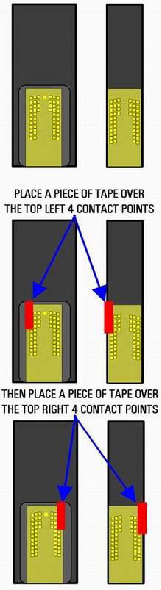
  • Place a piece of scotch tape over the top left four contacts as shown in the picture.
  • Place cartridge back into printer, close lid and wait 10 seconds.
  • Open the lid and wait for cartridge to return to “changing area”. The printer may show an error message at this time. This is not uncommon and is nothing to be concerned about.
  • Remove cartridge from printer.
  • Remove tape from left contact point and place on top right four contact points.
  • Place cartridge back into printer, close lid and wait 10 seconds.
  • Open the lid and wait for cartridge to return to “changing area”. The printer may show an error message at this time. This is not uncommon and is nothing to be concerned about.
  • Remove cartridges from printer then remove tape from cartridges
  • Place cartridge back into printer.
  • Printer will now recalibrate. Once the process is complete the ink level meter should be reading full again

How to Print Test Page Pattern Canon, Epson and HP Printers without CPU or Computer

Here how to test page pattern for some Canon, Epson and HP printer without Computer or CPU. Prepare paper on printer before test the printers.

A. Test page pattern for Epson Printer

For C series: C41, C42, C43, C45, C58, C61, C62, C63, C65, C67, C79, C85, C86, C87, etc.

For R series: R210, R230, R270, etc.

  • Push and hold paper/resume button and then push power button.

For CX Series like CX3500, CX3600, CX3700, CX 5100, CX4900, CX5900, etc

  • Push and hold power button, and then push ink button until indicator lamp blink once, and then release both of them.

B. Test page pattern for HP Printer

3600 series and 3700 series

  • Turn on printer, Wait until power indicator lamp stop blinking, then push and hold power button and then open and close again cover panel 3 or 4 times repeatedly.

HP37XX, HP39XX , D23XX , D24XX

  • Turn on printer , wait until power indicator lamp stop blinking then press power switch while opening the cover 5 times repeatedly then release switch button

Three in one Models

  • Switch on printer then press “cancel” and “color” at the same time

C. Test page pattern for Canon Printer

BJC 1000, BJC 2000, BJC 2100 SP, S100, S200

  • Push twice on resume button

IP 1200, IP 1300, IP 1600, IP 1700, IP 2200

  • Push 5 times on resume button

Source: http://www.duraklin.com

Cold reset and reset NVRAM HP LaserJets Printers 1100, 1200, 2100, 2200

NVRAM reset is reset HP printer to the default values and Cold  reset is reset computer setting to factory setting. I dont know what differences the both reset methods. Here the Cold reset and reset NVRAM methods for HP LaserJets printer 1100, 1200, 2100 and 2200

Cold reset and reset NVRAM for HP LaserJets 1100, 1200 Printers

Cold reset on the HP LaserJets 1100, 1200,  start with printers on, press and hold the Go button for 5 seconds. The methode will reset the printer.

To reset the NVRAM.

  • Turn the HP LaserJets 1100, 1200 printers off
  • Press and hold the Go button for 20 seconds while powering on the printer.

Printers HP LaserJets 2100

To perform a cold reset,

  • Turn the HP LaserJets 2100 printer power off
  • Press and hold the JOB CANCEL button.
  • Turn the printer power back on and after all the LEDs come on release the JOB CANCEL button. A cold reset changes most system parameters in NVRAM to the factory defaults. The JOB CANCEL button must be released within 20 seconds after all of the LEDs come on; otherwise, an NVRAM initialization is performed instead of a cold reset.

Reset Instructions for Printers HP 2200 LaserJets

Cold reset

  • Turn the HP 2200 LaserJets power off
  • Press and hold GO
  • Turn the printer power back on and continue to hold GO until the Attention light turns on
  • Release GO
  • The device lights will begin cycling from front to rear
  • The cold-reset process will run until completion and the device will go to the ready state.

NVRAM Reset

  • Turn the HP 2200 LaserJets power off
  • Press and hold GO.
  • Turn the printer power back on and continue to hold GO until the Attention, Ready, and Go lights turn on.
  • Release GO.
  • The device lights will begin cycling from font to rear
  • The NVRAM initialization will run until completion and the device will go to the ready state

What Cartridges Used in Your Printers

Did you know? what cartridge used in your printer ?. if no, you can  see the answer here. Knowing cartridge’s  type in your printer will help you to fine tutorial service manual and resetter for your printer, to repair the  printer problem. Sometime tutorial to service printer not mention type of printer but mention type of cartridges used.

Following some types of cartridge used on several printer :

Lexmark printer cartridges

Canon Printer Cartridges

Epson printer cartridges

HP printer cartridges

HP Universal Print Driver – Single Driver for HP Printers

Lost your HP Laserjet Printers Driver. HP.com give solution without downloading separate, product-specific drivers for your HP Laserjet Printer. The driver support fot most HP Laserjet device and now includes basic printing capability for non supported  device such as non HP printers.

How it work. When the driver installed, the driver communicates with each HP device and automatically customize the user inerface for each device’s unique feature.

Feature of HP Universal Print Driver

  • Single Driver for all network printers
  • Simplifies and improves printing for users
  • Improves deployment and installation for printers
  • Driver management is simple with a single-driver solution.
  • And more, read here

the latest version of HP Universal Print Driver is Version 5.0 when I post this article.

Download the newest release of the Universal Print Driver from HP Webiste.

Message Reset Methods for HP Printer IIISi, 4Si, 5Si

The Message Reset Methods for HP Printer IIISi, 4Si, 5Si is one of my notes about reset reset HP printer. This reset methods can be used to reset the HP printer IIISi, HP printer 4Si and HP printer 5Si because there aren’t software resetter for this HP printer models.

Here the Message Reset Methods for HP Printer IIISi, 4Si and HP 5Si:

HP 5Si Printers Maintenance Message Reset Methods

    1. Press MENU key 4 times for CONFIG MENU
    2. Press ITEM to display SERVICE MESSAGE=OFF
    3. Press ENTER
    4. Press ONLINE

      Message Reset Methods for HP Printers 4Si

        1. Press ONLINE until the light goes off
        2. Press MENU until CONFIG MENU appears
        3. Press the ITEM key until SERVICE MSG=ON* appears
        4. Press the + or – key to change display to SERVICE MSG=OFF
        5. Press the ENTER key to turn message off, the * should appear, then press ONLINE

          HP IIISi Printers Message Reset Methods

            1. Press ONLINE until the light goes off
            2. Hold down MENU until PCL CONFIG MENU appears
            3. Press the MENU key until SERVICE MSG=ON* appears
            4. Press the + or – key to change display to SERVICE MSG=OFF
            5. Press ENTER/RESET MENU key to turn message off, the * should appear, then press ONLINE

              How to Reset HP Laserjet 4200, 4300, 9000, 4250, 4350 and 2400

              Tutorial reset for HP Laserjet printer type HP 4200, HP 4300, HP 9000 4250, HP 4350 and HP 2400. The reset methods sixth HP printer almost similar. HP laserjet printer is popular printer for office uses because privides maximum printing speed than inkjet printer. That why the HP laserjet printer is ideal for small and medium businesses uses.

              Here the manual reset methods for HP Laserjet 4200, HP Laserjet 4300, HP Laserjet 9000, HP Laserjet 4250, HP Laserjet 4350 and HP Laserjet 2400

              Follow these steps to reset the maintenance count on an HP Laserjet 4200, 4300, 9000 4250, 4350, and 2400

              • Turn the Printer on.
              • Press and hold down the checkmark (Select) button while the memory is counting. The memory starts counting at 000MB immediately after you turn the power on. (Note: on laserjets 4200, 4300, 9000 you can hold down the checkmark button as you turn the power on, then wait for the three LEDs to illuminate. On the laserjets 4250, 4350, and 2400 series you need to wait until you turn the power on and the memory starts counting before you hold the checkmark button.)
              • Continue to hold down the checkmark (Select) button until all three LEDs are illuminated.
              • Release the checkmark (Select) button.
              • Press the up arrow (Navigation) button until the message New Maintenance Kit appears on the control panel display.
              • Press the checkmark button once.
              • A message New Maintenance will appear in the control panel display and the printer will reset.