Showing posts with label Reset. Show all posts

Tuesday, June 28, 2011

Cold Reset Methods HP LaserJet Printer 4345 MFP Series

Cold reset is be used to reset HP laserjet printer to the factory default setting, it mean any setting that found on the printer control panel will be reset to factory default setting. But cold reset does not clear the values in the service menu, such as the serial number and the page counts. To do cold reset on HP LaserJet Printer 4345 MFP Series, you try the methods mentioned in this post.

HP LaserJet 4345mfp is multifunction HP laserjet printer with printing, copying and scanning function. This HP Laserjet printer designed for office uses. Price of this HP laserjet printer type is about $2,800. HP 4345 MFP can print B/W document up to 43 ppm. This printer can be connected to printer through Hi-Speed USB port.

HP LaserJet 4345mfp - multifunction printer

How to Perform a Cold Reset HP LaserJet 4345 MFP

  • Turn the HP LaserJet 4345 MFP off and then on this printer.
  • When the memory count appears on the control-panel display, press and hold 6 until all three LEDs flash once and then stay on. This might take up to 20 seconds.
  • Press 3 four times until COLD RESET appears on the control-panel display.
  • Press 6 one time. The HP LaserJet 4345 MFP should continue its initialization sequence.

CAUTION: By performing cold reset all setting on the HP LaserJet 4345 MFP are also reset. Before performing cold reset be sure to print a configuration pada and menu map.

Alternative Ink Level Reset for Cartridges HP 21, HP 27, HP 56, HP 58, HP 22, HP28 and HP 57

On the past tutorial I have posted tutorial about reset ink level on HP printer, ink level reset for HP cartridge HP21, HP27, HP56 and HP58 and ink level reset for HP printer cartridge HP22, HP28 and HP57.

On the some HP printers the ink level reset methods on the link above does no work which possibility caused the different condition on each printer. Other solution you ca using following reset methods to reset ink level on HP printer which using HP 21, HP 27, HP 56, HP 58, HP 22, HP28 and HP 57 cartridges types.

The Steps to Reset Ink level Printer cartridges HP 21, HP 27, HP 56, HP 58, HP 22, HP28 and HP 57

  • Turn your computer OFF and then remove cartridge from printer.
  • Turn printer off
  • Place a piece of tape over the top left contact as shown in BLUE on the picture to the right.
  • Turn on printer. Printer will automatically print test page. (if printer does not print a test page but goes through a priming routine continue following steps when routine ends.
  • Remove cartridge from printer.
  • Place a piece of tape over top right contact as shown in RED on the picture to the right.
  • Return cartridge to printer. Printer will go through a series of tests. Which will be quite audible.
  • Remove cartridge from printer.
  • Place a piece of tape over the two contacts on the right side of the cartridge as shown in GREEN on the picture to the right.
  • Return cartridge to printer. Printer will run additional tests and be quite audible.(If you check your ink levels at this point you will receive a “printer busy message”)
  • Remove cartridge from printer and remove all tape from cartridge.
  • Reinstall cartridge. (If you check your ink levels at this point you will receive a “printer busy message”)
  • Turn printer off. Wait for 20 seconds and turn the printer back on. Ink level should now read full.

HP 51641, HP 51645, C1823, C6615, C6578 CARTRIDGES INK LEVEL RESET

The HP 51641, C1823 & C6578 Cartridges are found in the following printers, Deskjet 700 Series, 800 Series, 900 Series, 1100 Series, 1220 Photo Series, P1000 Photo Series, 710C, 712C, 720C, 722C, 810C, 812C, 820Cse, 820Cxi, 850C, 855C, C1823D, 890C, 895Cxi 1000, 1120C, 1120Cse, 1120 Cxi, Officejet Pro 1150C, 1170C, 1175 HP Officejet All-in-one R40, R60, R80 Color Copier 140, 145, 150

The process below can be used with one cartridge or for resetting both cartridges at the same time. It is recommended that you use this process when needed. Some HP printers do not require ink level resetting.

If you currently use the following HP ink jet cartridges HP 51641, HP 51645, C1823, C6615, C6578 this will allow you to reset the ID system & Ink Level Indicator built into the printer.

To reset the ink monitor to display “Full”, follow this procedure.

  • Open printer lid so cartridges move to center of carriage (changing area).
  • Lift clamp and remove black or color cartridge from the holder.
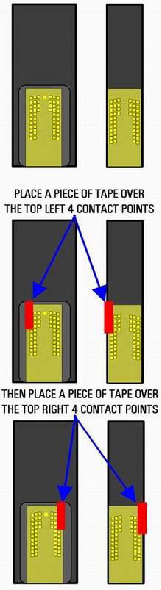
  • Place a piece of scotch tape over the top left four contacts as shown in the picture.
  • Place cartridge back into printer, close lid and wait 10 seconds.
  • Open the lid and wait for cartridge to return to “changing area”. The printer may show an error message at this time. This is not uncommon and is nothing to be concerned about.
  • Remove cartridge from printer.
  • Remove tape from left contact point and place on top right four contact points.
  • Place cartridge back into printer, close lid and wait 10 seconds.
  • Open the lid and wait for cartridge to return to “changing area”. The printer may show an error message at this time. This is not uncommon and is nothing to be concerned about.
  • Remove cartridges from printer then remove tape from cartridges
  • Place cartridge back into printer.
  • Printer will now recalibrate. Once the process is complete the ink level meter should be reading full again

Cold reset and reset NVRAM HP LaserJets Printers 1100, 1200, 2100, 2200

NVRAM reset is reset HP printer to the default values and Cold  reset is reset computer setting to factory setting. I dont know what differences the both reset methods. Here the Cold reset and reset NVRAM methods for HP LaserJets printer 1100, 1200, 2100 and 2200

Cold reset and reset NVRAM for HP LaserJets 1100, 1200 Printers

Cold reset on the HP LaserJets 1100, 1200,  start with printers on, press and hold the Go button for 5 seconds. The methode will reset the printer.

To reset the NVRAM.

  • Turn the HP LaserJets 1100, 1200 printers off
  • Press and hold the Go button for 20 seconds while powering on the printer.

Printers HP LaserJets 2100

To perform a cold reset,

  • Turn the HP LaserJets 2100 printer power off
  • Press and hold the JOB CANCEL button.
  • Turn the printer power back on and after all the LEDs come on release the JOB CANCEL button. A cold reset changes most system parameters in NVRAM to the factory defaults. The JOB CANCEL button must be released within 20 seconds after all of the LEDs come on; otherwise, an NVRAM initialization is performed instead of a cold reset.

Reset Instructions for Printers HP 2200 LaserJets

Cold reset

  • Turn the HP 2200 LaserJets power off
  • Press and hold GO
  • Turn the printer power back on and continue to hold GO until the Attention light turns on
  • Release GO
  • The device lights will begin cycling from front to rear
  • The cold-reset process will run until completion and the device will go to the ready state.

NVRAM Reset

  • Turn the HP 2200 LaserJets power off
  • Press and hold GO.
  • Turn the printer power back on and continue to hold GO until the Attention, Ready, and Go lights turn on.
  • Release GO.
  • The device lights will begin cycling from font to rear
  • The NVRAM initialization will run until completion and the device will go to the ready state

Message Reset Methods for HP Printer IIISi, 4Si, 5Si

The Message Reset Methods for HP Printer IIISi, 4Si, 5Si is one of my notes about reset reset HP printer. This reset methods can be used to reset the HP printer IIISi, HP printer 4Si and HP printer 5Si because there aren’t software resetter for this HP printer models.

Here the Message Reset Methods for HP Printer IIISi, 4Si and HP 5Si:

HP 5Si Printers Maintenance Message Reset Methods

    1. Press MENU key 4 times for CONFIG MENU
    2. Press ITEM to display SERVICE MESSAGE=OFF
    3. Press ENTER
    4. Press ONLINE

      Message Reset Methods for HP Printers 4Si

        1. Press ONLINE until the light goes off
        2. Press MENU until CONFIG MENU appears
        3. Press the ITEM key until SERVICE MSG=ON* appears
        4. Press the + or – key to change display to SERVICE MSG=OFF
        5. Press the ENTER key to turn message off, the * should appear, then press ONLINE

          HP IIISi Printers Message Reset Methods

            1. Press ONLINE until the light goes off
            2. Hold down MENU until PCL CONFIG MENU appears
            3. Press the MENU key until SERVICE MSG=ON* appears
            4. Press the + or – key to change display to SERVICE MSG=OFF
            5. Press ENTER/RESET MENU key to turn message off, the * should appear, then press ONLINE

              How to Reset HP Laserjet 4200, 4300, 9000, 4250, 4350 and 2400

              Tutorial reset for HP Laserjet printer type HP 4200, HP 4300, HP 9000 4250, HP 4350 and HP 2400. The reset methods sixth HP printer almost similar. HP laserjet printer is popular printer for office uses because privides maximum printing speed than inkjet printer. That why the HP laserjet printer is ideal for small and medium businesses uses.

              Here the manual reset methods for HP Laserjet 4200, HP Laserjet 4300, HP Laserjet 9000, HP Laserjet 4250, HP Laserjet 4350 and HP Laserjet 2400

              Follow these steps to reset the maintenance count on an HP Laserjet 4200, 4300, 9000 4250, 4350, and 2400

              • Turn the Printer on.
              • Press and hold down the checkmark (Select) button while the memory is counting. The memory starts counting at 000MB immediately after you turn the power on. (Note: on laserjets 4200, 4300, 9000 you can hold down the checkmark button as you turn the power on, then wait for the three LEDs to illuminate. On the laserjets 4250, 4350, and 2400 series you need to wait until you turn the power on and the memory starts counting before you hold the checkmark button.)
              • Continue to hold down the checkmark (Select) button until all three LEDs are illuminated.
              • Release the checkmark (Select) button.
              • Press the up arrow (Navigation) button until the message New Maintenance Kit appears on the control panel display.
              • Press the checkmark button once.
              • A message New Maintenance will appear in the control panel display and the printer will reset.